Showing posts with label text. Show all posts
Showing posts with label text. Show all posts
Sunday, April 30, 2017
How to write or comment in blue color text on Facebook
How to write or comment in blue color text on Facebook

In my previous posts I have mentioned you how you can use the Facebook Graph API to create some cool emoticons. If you have missed it then read it here: Special Facebook Secret Emoticons and Picture Smileys
Now let me show you how you can make your status update or comments as a link having the default Facebook blue color.
So how to you comment with blue color on Facebook?
Well its really simple. Just enter your message in a specific format.
1. Copy sentence which is below and replace the text “YOUR STATUS OR COMMENT” with the message you wish to post.
@@[3:[0:3:YOUR STATUS OR COMMENT]]
If the above code doesn’t work you can try this:
@@[2:[0:2:YOUR STATUS OR COMMENT]]
That’s it press enter and your status update or comment will be posted as link in blue color.
Go to link download

Wednesday, April 12, 2017
Photo Image Ko Text Me Convert Kaise Kare
Photo Image Ko Text Me Convert Kaise Kare

Hello friend, is post me ham janenge ki image, photos ko text and word me convert kaise karte hai ?
Aapne aisi bohot si images dekhe honge jinme koi shayari, quotes, tips, dialogue aur kuch important document ki image rehti hai. Yadi hame ise text me convert karna hai to normally ham log use dekhkar type karte hai but aap ise kuch tools and app ki madad se directly convert kar sakte hai.
Photo / Image Ko Text Me Convert Karne Se Fayde
1. Sabse pehla fayda to ye aapko itna saara type nahi karna padega.
2. Samay ki bachat hogi. Aap typing karte to 1000-1500 word ke liye 30 minute tak lag jate jabki isme wahi kaam 2 minute se bhi kam samay me ho jayega.
3. Image me jo bhi likha hai aur usme kahi spelling mistake hai to use aap convert karne ke baad edit bhi kar sakte hai.
4. Image har jagah send nahi ki ja sakti jabki text ko aap kahi par bhi send kar sakte hai.
5. Yadi aap blogger hai to ye aapke liye bohot hi faydemand hai kyoki aap image ki jagah text content dalenge to SEO ke liye jyada accha rahega.
6. convert karne ke baad aap usme paragraph changing, numbering etc. bhi kar sakte hai.
2. Samay ki bachat hogi. Aap typing karte to 1000-1500 word ke liye 30 minute tak lag jate jabki isme wahi kaam 2 minute se bhi kam samay me ho jayega.
3. Image me jo bhi likha hai aur usme kahi spelling mistake hai to use aap convert karne ke baad edit bhi kar sakte hai.
4. Image har jagah send nahi ki ja sakti jabki text ko aap kahi par bhi send kar sakte hai.
5. Yadi aap blogger hai to ye aapke liye bohot hi faydemand hai kyoki aap image ki jagah text content dalenge to SEO ke liye jyada accha rahega.
6. convert karne ke baad aap usme paragraph changing, numbering etc. bhi kar sakte hai.
Image / Photo Ko Text Me Convert Kaise Kare
Mai yaha aapko 2 methods bataunga. 1st method me website ka use karna hoga aur 2nd method me android app ka.
1st method online hai but kisi bhi platform android, pc, i phone se iska use kar sakte hai. 2nd method offline hai but ye sirf android ke liye hai.
1st method online hai but kisi bhi platform android, pc, i phone se iska use kar sakte hai. 2nd method offline hai but ye sirf android ke liye hai.
1st Method
1. Sabse pehle onlineocr.net open kare.
2. Select file option me click karke image select kare jise text me convert karna hai.
3. Language select kare jo image me hai.
4. File format select kare jisme convert karna hai.
5. Captcha code enter kare aur last me convert button me click kare.
2. Select file option me click karke image select kare jise text me convert karna hai.
3. Language select kare jo image me hai.
4. File format select kare jisme convert karna hai.
5. Captcha code enter kare aur last me convert button me click kare.
Jaise hi convert button me click karenge aapko image me likha hua text ek box me likha hua milega use select karke copy kar le aur file download karna chahe to wo bhi kar sakte hai.
2nd Method
1. Sabse pehle Text Fairy app download kare aur open kare.
3. Jitne hisse ka text chahiye utna select kare aur ok me click kare.
Download Text Fairy
2. Image select kare ya text document ki photo camera se le.3. Jitne hisse ka text chahiye utna select kare aur ok me click kare.
Thodi der ki processing ke baad aapko result mil jayega. Use copy karke aap use kar sakte hai.
Dono method me 1st method jyada useful hai. Kyoki 1st method me aapko clear result milta hai, jyada time bhi nahi lagta aur iska use kisi bhi platform par kiya ja sakta hai.
Friends aapko ye trick kesi lagi hame comment me bataye. Aapka post se related koi question ho to hamse comment me pooch sakte hai.
Hamare blog ki new update facebook wall par pane ke liye hamara facebook page like kare aur email par pane ke liye hamara blog subscribe kare.
Hamare blog ki new update facebook wall par pane ke liye hamara facebook page like kare aur email par pane ke liye hamara blog subscribe kare.
Go to link download
Friday, March 24, 2017
SysExporter Grab data from list view tree view combo box WebBrowser control and text box
SysExporter Grab data from list view tree view combo box WebBrowser control and text box
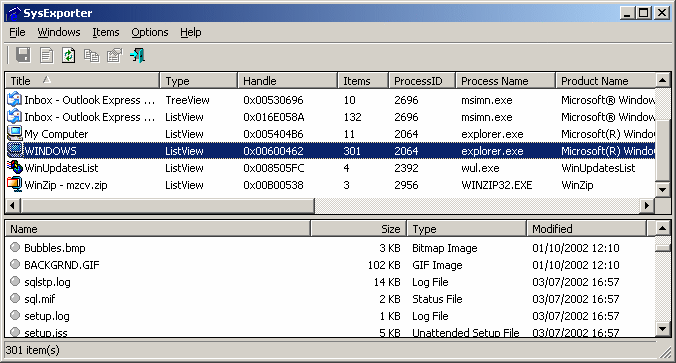
SysExporter utility allows you to grab the data stored in standard list-views, tree-views, list boxes, combo boxes, text-boxes, and WebBrowser/HTML controls from almost any application running on your system, and export it to text, HTML or XML file.
Heres some examples for data that you can export with SysExporter:
- The files list inside archive file (.zip, .rar, and so on) as displayed by WinZip or 7-Zip File Manager.
- The files list inside a folder.
- The event log of Windows.
- The list of emails and contacts in Outlook Express.
- The Registry values displayed in the right pane of the Registry Editor.
- The data displayed by SysInternals utilities (Registry Monitor, File Monitor, Process Explorer, and others.)
- The text inside a standard message-box of Windows.
- The HTML inside any instance of Internet Explorer.
Using SysExporter
This utility is a standalone executable, so it doesnt require any installation process or additional DLLs. Just run the executable (sysexp.exe) and start using it. There is only one exception: If you want to run this utility on Windows NT, you should download the psapi.dll, and copy it into the system32 folder. The main window of SysExporter contains 2 panes:- The upper pane displays the list of current opened windows that are available for export.
- When you select a single window in the upper pane, the lower pane displays all data that you can export from the selected window. For example: If you select the My computer window in the upper pane, the lower pane will display the list of all your disks, and they are displayed in the original My Computer window.
Practical Example
Lets say that you want to export the list of all files in your C:Windows folder to Excel:- First, open the C:Windows folder (or any other folder that you want to export).
- In the top pane of SysExporter, find the window of C:Windows folder and select it. If you cannot find this window, try to refresh the list by pressing F5 key.
- After selecting the desired window in the top pane, the files list of this window will be loaded to the lower pane.
- Select the files in the lower pane that you want to export. (Press Ctrl+A in order to select all files)
- Press Ctrl+C in order to copy the selected items to the clipbaord. (The exported items are copied in tab-delimited format)
- In Excel, go the position that you want to put the exported data, and then press Ctrl+V to paste the exported data into your Excel worksheet.
Download SysExporter
Go to link download
Thursday, March 23, 2017
Facebook me color text kaise likhte hai fb color text codes
Facebook me color text kaise likhte hai fb color text codes

Aaj me aap ko kuch fb colour codes bataunga jinki madad se aap fb me colour text aasani se likh sakte hai. Yah bahut hi acchi fb trick hai. Iske liye aapko kisi app ki jaroorat nahi hai aur na hi kuch alag se karna hai, bas aapko kuch simple se codes ka use karna hai jo aap ko bataunga.
Aap in codes ka use karke apne friends par accha impression jama sakte hai. In codes ke use se aap text color, text background color change kar sakte hai aur text ko bold kar sakte hai. In codes ka use aap fb message, post aur comment me bhi kar sakte hai.
Ye bhi padhe- Facebook autoliker se kya nuksan hai
Fb color text codes
<fg=b0ffd700> Golden<fg=b0000000> Black
<fg=b0ff7f00> Orange
<fg=b0ffff00> Yellow
<fg=b0ff00ff> Light pink
<fg=b0ff00ff> Dark pink
<fg=b0ff0000> Redish pink
<fg=b0800000> Brown
<fg=b0ffc0cb> Light purple
<fg=b06f00ff> Dark Blue
<fg=b0c0c0c0> Grey
<fg=80ffffff> Sky Blue
<fg=b000ffff> Light Blue
<fg=b0bf00ff> Purple
<fg=b08f00ff> Dark Purple
<fg=b0808000> Mehandi Green
<fg=b0f000f0> Majenta
<fg=b00000ff> Blue
<fg=b0b08080> Steel Grey
<fg=b0000080> Movve
<fg=b0964b00> Light Brown
<fg=f0f00f0f> Red
<fg=b000ff00> Green
Example- <fg=b000ff00> Hindihelpz = Hindihelpz
Fb text background color
Text ke backgrour ka color change karne ke liye aapko oopar diye gaye codes me fg ki jagah par bg likhna hai.Example- <bg=b000ff00> Hindihelpz = Hindihelpz
Text ko bold kaise kare
Fb me Text ko bold karne ke liye <b> likhna hai.aur iske aage jo bhi text bold karna hai wo likhe.Example- <b> Hindihelpz = Hindihelpz
Note- ye codes sirf fb ki application me work karte hai.
Friends aapko ye post pasand aayi ho to esi hi tricks paane ke liye hamara fb fan page like karna na bhoole.
THANX....
Go to link download
Thursday, March 9, 2017
Whatsapp Me Color Stylish Aur Magic Text Kaise Likhte Hai
Whatsapp Me Color Stylish Aur Magic Text Kaise Likhte Hai

Friends ye question mujhse Vinay Raidas ne comment me kiya tha ki "facebook aur whatsapp me color text kaise likhte hai" to mene socha ki is baare me ek post hi likh du jis se Hindi Helpz ke baaki readers ko bhi is trick ka pata chal jaye. facebook me color text kaise likhte hai post mai already kar chuka hu. is trick aap log apne friends ke upar accha khasa impression jama sakte hai. To chaliye jante hai-
How To Write Color, Style & Magic Text On Whatsapp
Aap log to jaante hai ki whatsapp me esa koi feature nahi hai jiski madad se colored and stylish text likh sake, isliye is trick ke liye hame third party apps ki madad lena hoga jo aapko google play store me aasani se mil jayenge.
Ham yaha par aapko 3 apps bata rahe hai.
Ham yaha par aapko 3 apps bata rahe hai.
1. BLUEify
BLUEify app ki madad se ham whatsapp me blue color ke text send kar sakte hai.
Bluetify ko use karne ke liye ye steps follow kare -
Bluetify ko use karne ke liye ye steps follow kare -
1) Sabse pehle blueify app download kare aur open kare.
Download BLUEify
2) Box me apna message type kare aur Copy Blue Text me click kare.
3) Iske baad whatsapp open kare aur jise message send karna hai uske sath conversation suru kare.
4) Fir copy kiya hua text message box me paste kare aur send kar de.
3) Iske baad whatsapp open kare aur jise message send karna hai uske sath conversation suru kare.
4) Fir copy kiya hua text message box me paste kare aur send kar de.
Read Also :
? Whatsapp Ke New Font Fixedsys Ka Use Kaise Kare.
? 10 whatsapp tricks hindi me, jo shayad aap nahi jante.
? Whatsapp me friend ki profile picture kaise change kare.
2. WhatsBlue Text
WhatsBlue Text application se whatsapp me blue text send karne ke sath sath stylish text bhi type kar sakte hai. is app me 20+ text styles hai.
WhatsBlue Text app ka use karne ke liye -
1) Sabse pehle WhatsBlue Text app download kare aur open kare.
WhatsBlue Text app ka use karne ke liye -
1) Sabse pehle WhatsBlue Text app download kare aur open kare.
Download WhatsBlue Text
2) Box me apna message type kare uske aapka message bahut si styles me show hoga, isme se aapko jo bhi style pasand ho use copy karne ke liye usme tap kare.
3) whatsapp me send kare.
3) whatsapp me send kare.
3. Text styles for Whatsapp
Text styles for whatsapp app ki madad se colorful text likh sakte hai, text ki style, text background color aur text background image bhi change kar sakte. is app se text message send nahi hote, ham jo bhi text likhte hai wo image me convert hokar send hota hai.
Text style for whatsapp use karne ke liye -
1) Text style for whatsapp app download kare aur open kare.
Text style for whatsapp use karne ke liye -
1) Text style for whatsapp app download kare aur open kare.
Download Text style for whatsapp
2) Text box me apna message type kare.
? Text color choose kare
? Text style choose kare
? Text background color ya image choose kare.
3) Share option me click kare aur whatsapp choose kare aur jise send karna hai use send kar de.
? Text color choose kare
? Text style choose kare
? Text background color ya image choose kare.
3) Share option me click kare aur whatsapp choose kare aur jise send karna hai use send kar de.
Friends ye post apne friends ke sath share kare aur esi hi trick apne fb wall par pane ke liye hamara fb page like kare.
Go to link download
Subscribe to:
Posts (Atom)